
Regular Stock Counts
After your initial setup, you'll need to do regular stock counts to keep your inventory accurate.
Why Regular Counts Matter
Even with automatic tracking, small differences can add up over time:
- Items damaged and not logged as waste
- Recipe portions that vary slightly
- Theft or loss
- Data entry errors
Regular stock counts help you catch these variances early and keep your inventory data accurate.
How Often to Count
The frequency of stock counts depends on your outlet's volume and needs:
| Frequency | Best For |
|---|---|
| Daily | High-value items or fast-moving inventory |
| Weekly | Most outlets — good balance of accuracy and effort |
| Bi-weekly | Lower-volume outlets |
Your Butter administrator will work with you to set a schedule and expectations for how frequently stock counts should be performed at your outlet.
Full vs Partial Counts
Full Counts
A full count means counting every item in every storage location. This is required for:
- Your first stock count (to establish baseline levels)
- Periodic complete inventory audits
Partial Counts
A partial count means counting some items or some storage locations. This is useful for:
- Regular maintenance counts
- Focusing on high-value or fast-moving items
- Counting different locations on different days
For ongoing operations, it's perfectly fine to do partial counts. You might count your freezer on Mondays, dry storage on Wednesdays, and refrigerator on Fridays, for example.
The Counting Process
Step 1: Open the Butter Manager app
Open the Butter Manager app on your outlet device and log in.
Step 2: Start a Stock Count
- Navigate to Stock Counts
- Click "New Stock Count"
- Select the storage location you're counting
Step 3: Count and Enter Quantities
For each item:
- Find the item in the app
- Physically count what you have
- Enter the quantity — you can use different increments or mark items as out of stock
Step 4: Submit the Count
When finished with a location, submit your count for review.
Manager Approval
All stock counts submitted by employees must be verified and approved by a manager.
How to Review Stock Counts
- Go to Stock Counts in Butter Backoffice
- Review pending stock counts in your approval queue
- Check for any unusual variances
- Approve or request corrections
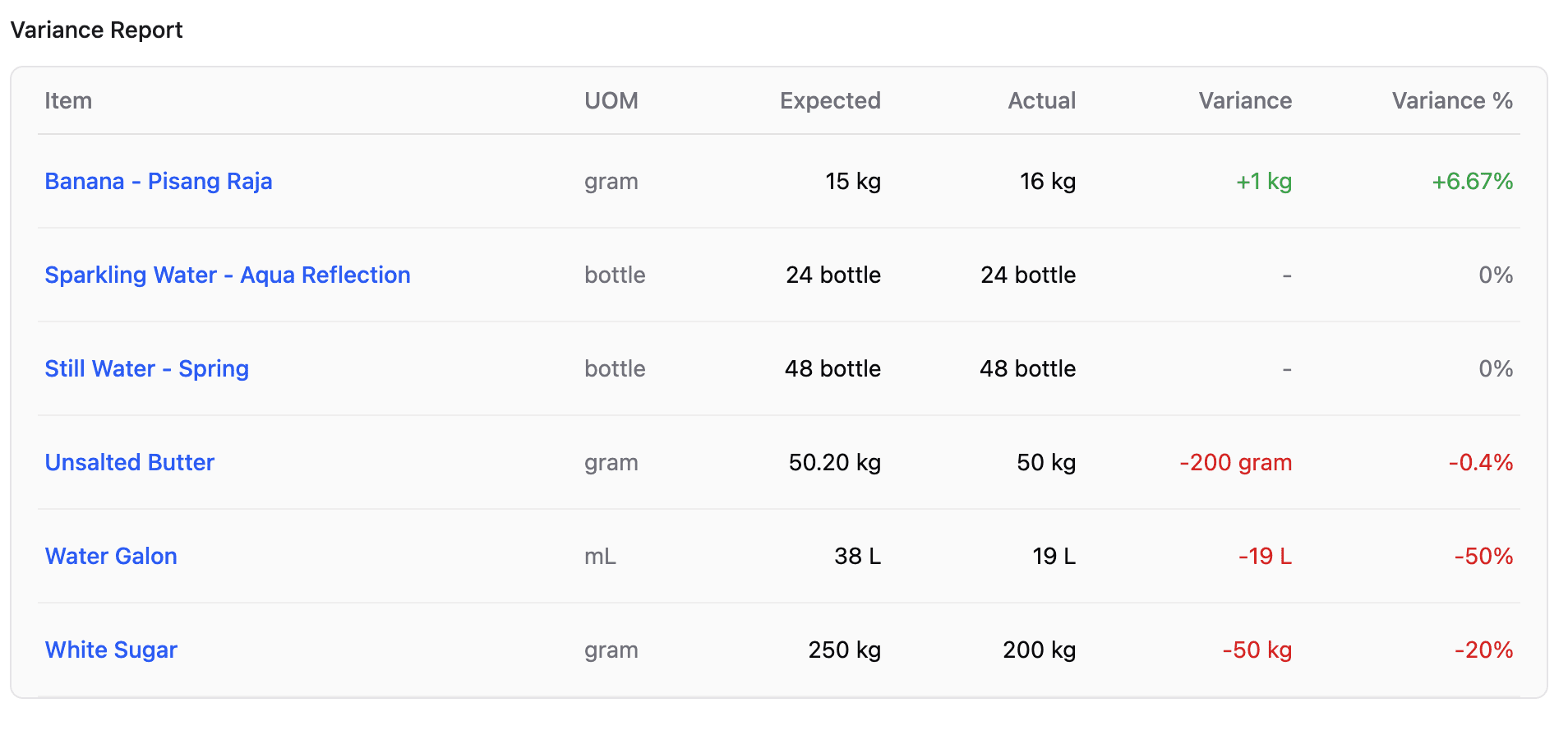
Understanding Variance
After a count, Butter shows the variance — the difference between:
- What the system expected (based on tracking)
- What was actually counted
Large variances may indicate:
- Waste that wasn't logged
- Recipe inaccuracies
- Theft or loss
- Counting errors
Tips for Accurate Counting
- Count at consistent times — Same time of day, same day of week
- Count when slow — Fewer items moving in and out
- Double-check large variances — Recount before submitting if something seems off
- Log waste separately — Don't just adjust counts to hide waste
Remember: Stock counts adjust the system to match reality. If you find variance, investigate why — don't just accept it without understanding the cause.