
Your First Stock Count
This is the most important step in setting up your outlet. Your first stock count tells Butter exactly what you have right now, and everything else will be calculated from this starting point.
Why This Is Critical
Your first stock count establishes the baseline for all future inventory tracking.
After this count is complete:
- ✅ Every purchase order you receive will add to these numbers
- ✅ Every production log will add to these numbers
- ✅ Every waste log will subtract from these numbers
- ✅ Every customer order will subtract based on recipes
If your first count is wrong, all future calculations will be wrong too. Take your time and be accurate!
Before You Start
Choose the Right Time
Pick a time when:
- The outlet is closed or slow — Fewer interruptions
- You have enough staff — Counting goes faster with help
- You can complete it fully — Don't leave it half-done
Ideal times:
- Before opening
- After closing
- During a slow period
Gather Your Tools
You'll need:
- Outlet Manager app — On your phone or tablet
- Pen and paper (backup) — In case you need to note anything
- Scale — For items measured by weight
- Calculator — For converting packages to units
Brief Your Team
Make sure everyone helping knows:
- Which storage location they're counting
- How to use the Outlet Manager app
- Who to ask if they have questions
Counting Process
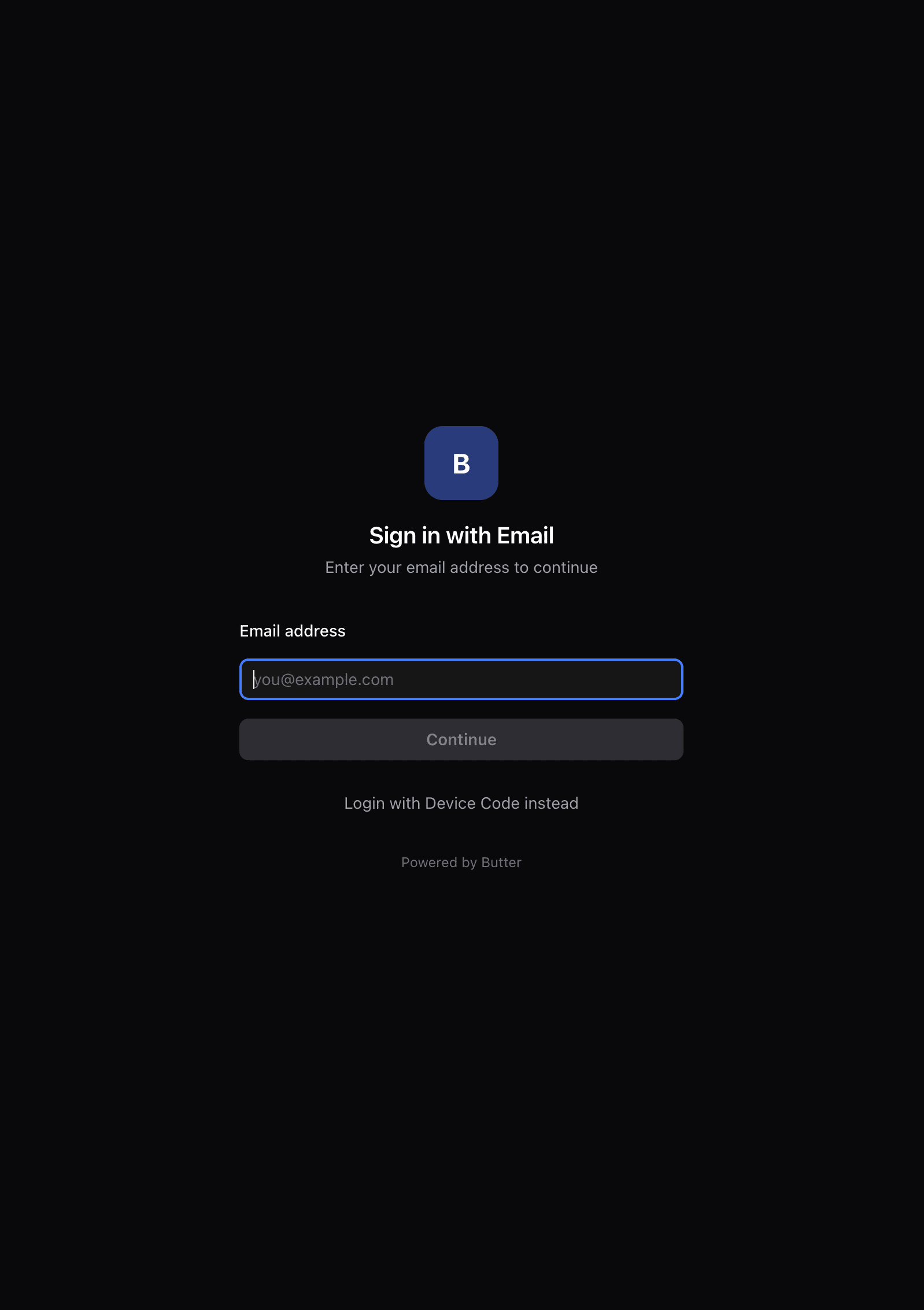
Step 1: Open the Butter Manager app
Open the Butter Manager app on your outlet phone or tablet. Not installed yet? Download it here (Android), or find it in TestFlight on iPad.
For managers: You can log in with your own Butter email and password to perform stock counts.
For other employees: A specific device (phone or tablet) should be allocated for Outlet Manager at your store. This device should be logged in using a device code tied to that specific outlet. Ask your Butter administrator to set up a device code for your outlet.
Step 2: Start a Stock Count
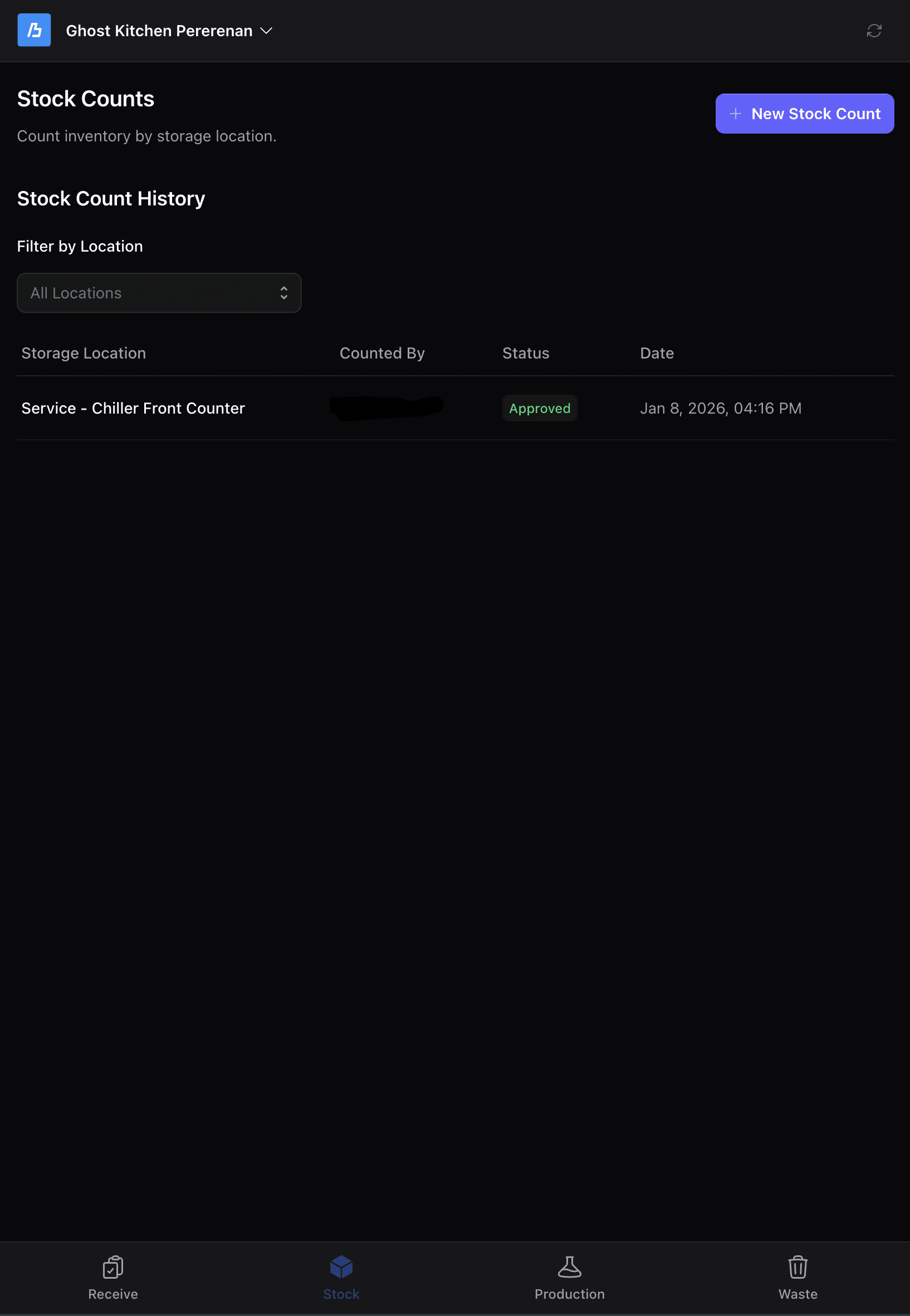
- Navigate to Stock Counts
- Click "New Stock Count"
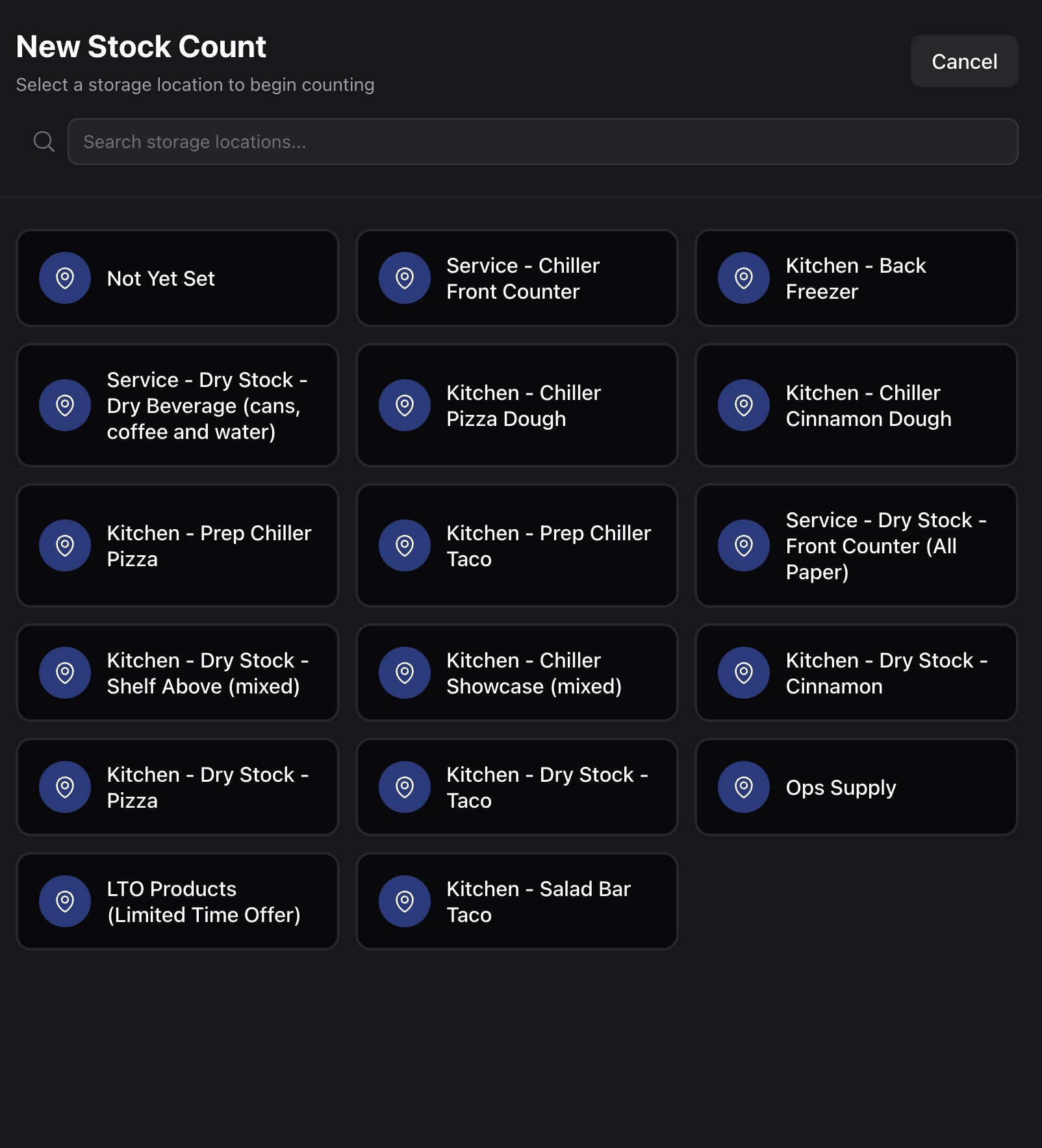
- Select the storage location you're counting first
Step 3: Count Each Item
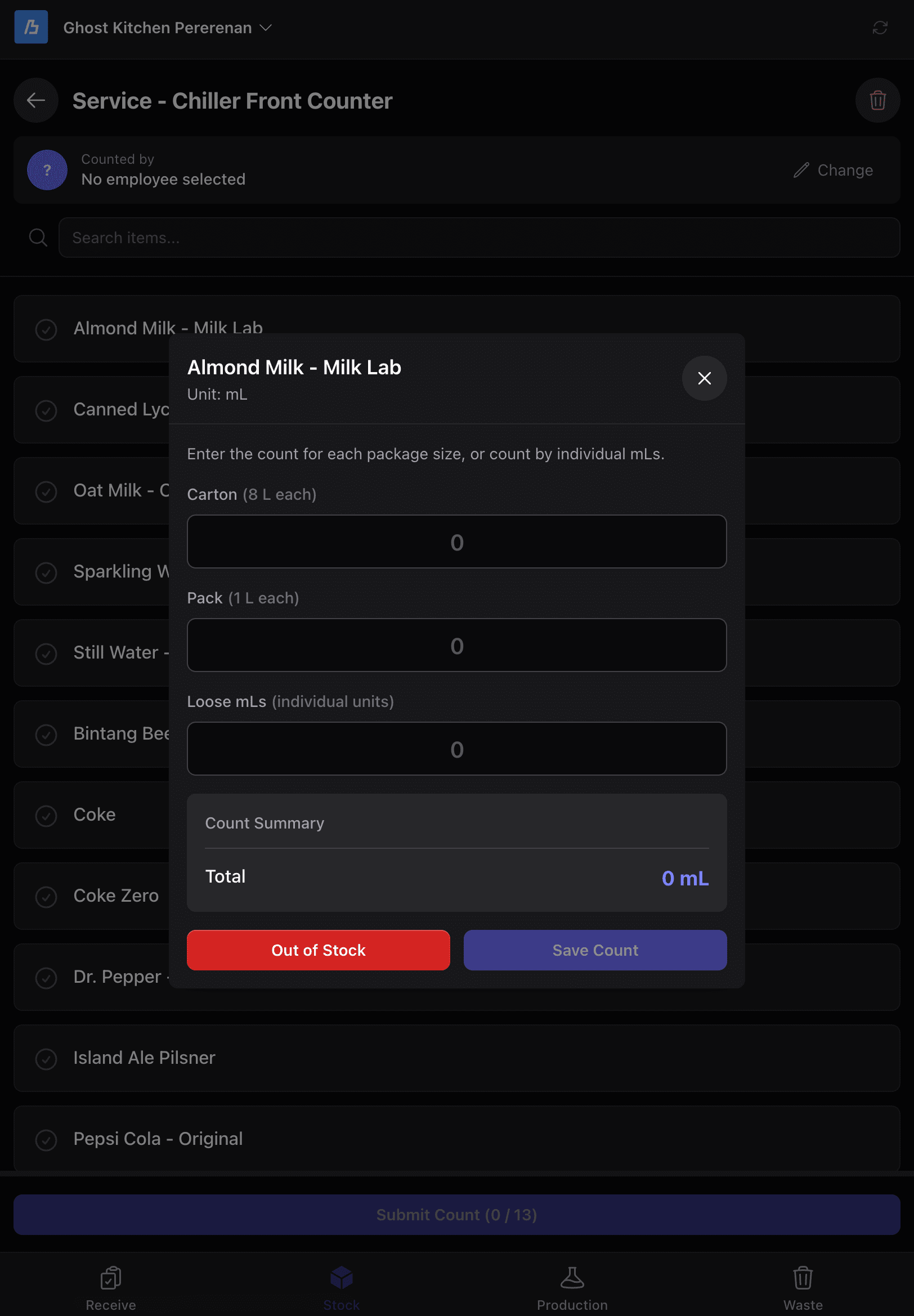
For each item in the location:
- Find the item in the app
- Physically count what you have
- Enter the quantity in the correct unit
It's possible to submit a partial count if you don't intend to count every item. However, for your first stock count, it's best to count every item so the system can establish accurate starting stock levels.
Counting Options
When counting each item, you can:
- Enter quantities in different increments — Use the increment buttons or type a specific number
- Mark an item as out of stock — If you have zero of an item, mark it as out of stock
Tips for Accurate Counting
| Situation | What to Do |
|---|---|
| Unopened packages | Count the packages, convert to units if needed |
| Partially used items | Estimate as accurately as possible |
| Items in multiple containers | Add them all together |
| Damaged items | Count them, but note for waste logging later |
Step 4: Complete the Location
When you've counted everything in a storage location:
- Review your entries
- Click "Complete" or "Submit" for this location
- Move to the next storage location
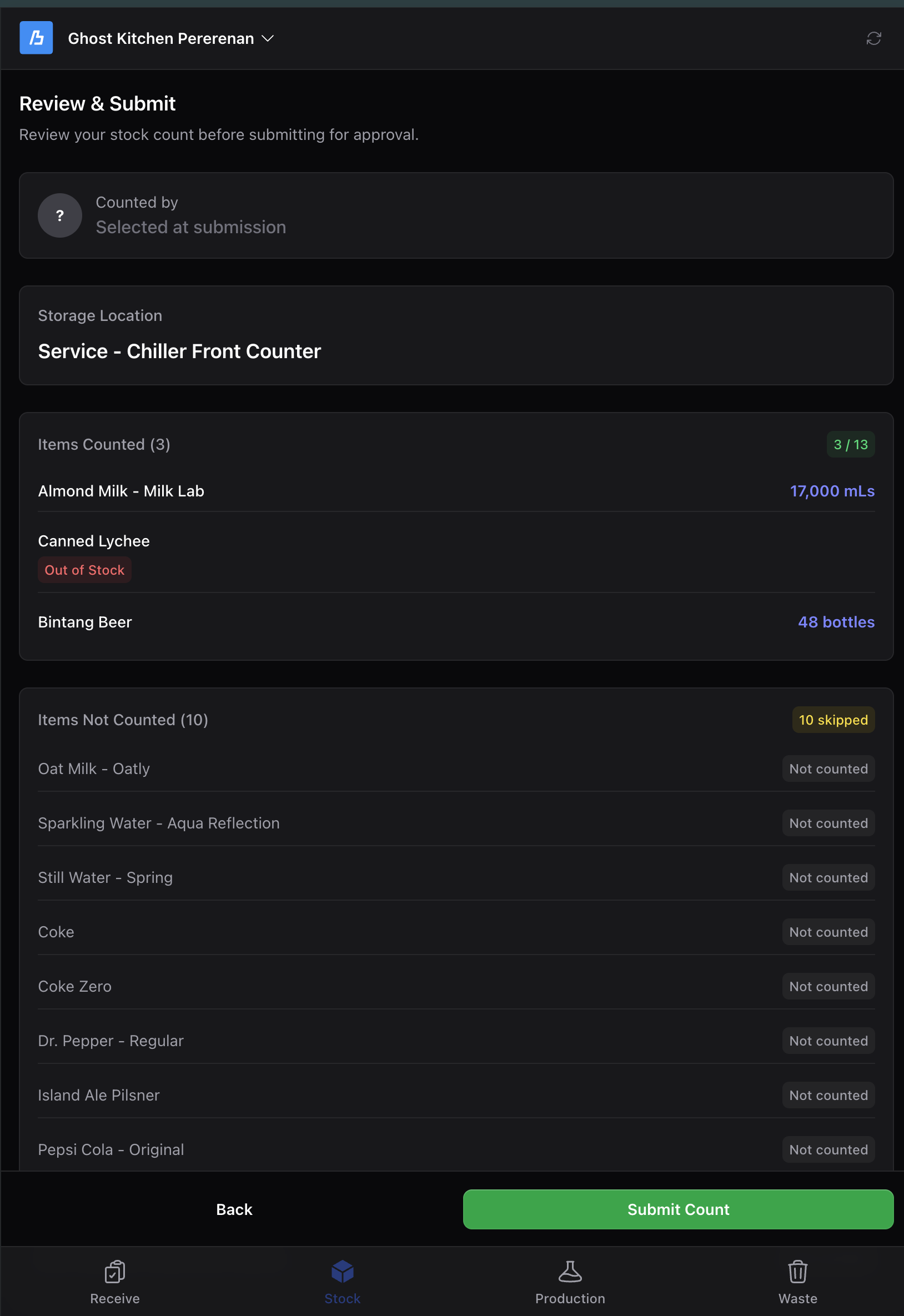
Step 5: Repeat for All Locations
Go through each storage location until your entire outlet is counted:
- Walk-in Freezer
- Walk-in Refrigerator
- Dry Storage
- Prep Station areas
- Display areas
- Any other storage locations
Completing all storage locations is important for your first stock count to establish accurate baseline levels. For future stock counts, it's okay to do partial counts — you might only count certain storage locations on certain days. We will set a schedule and expectations for how frequently stock counts should be performed at your outlet.
After the Count
What Happens Next
Once you finalize your first stock count:
- Butter saves your quantities as the starting point
- Automatic tracking begins — All future changes will be calculated
- You can view stock levels in real-time from now on
Manager Verification and Approval
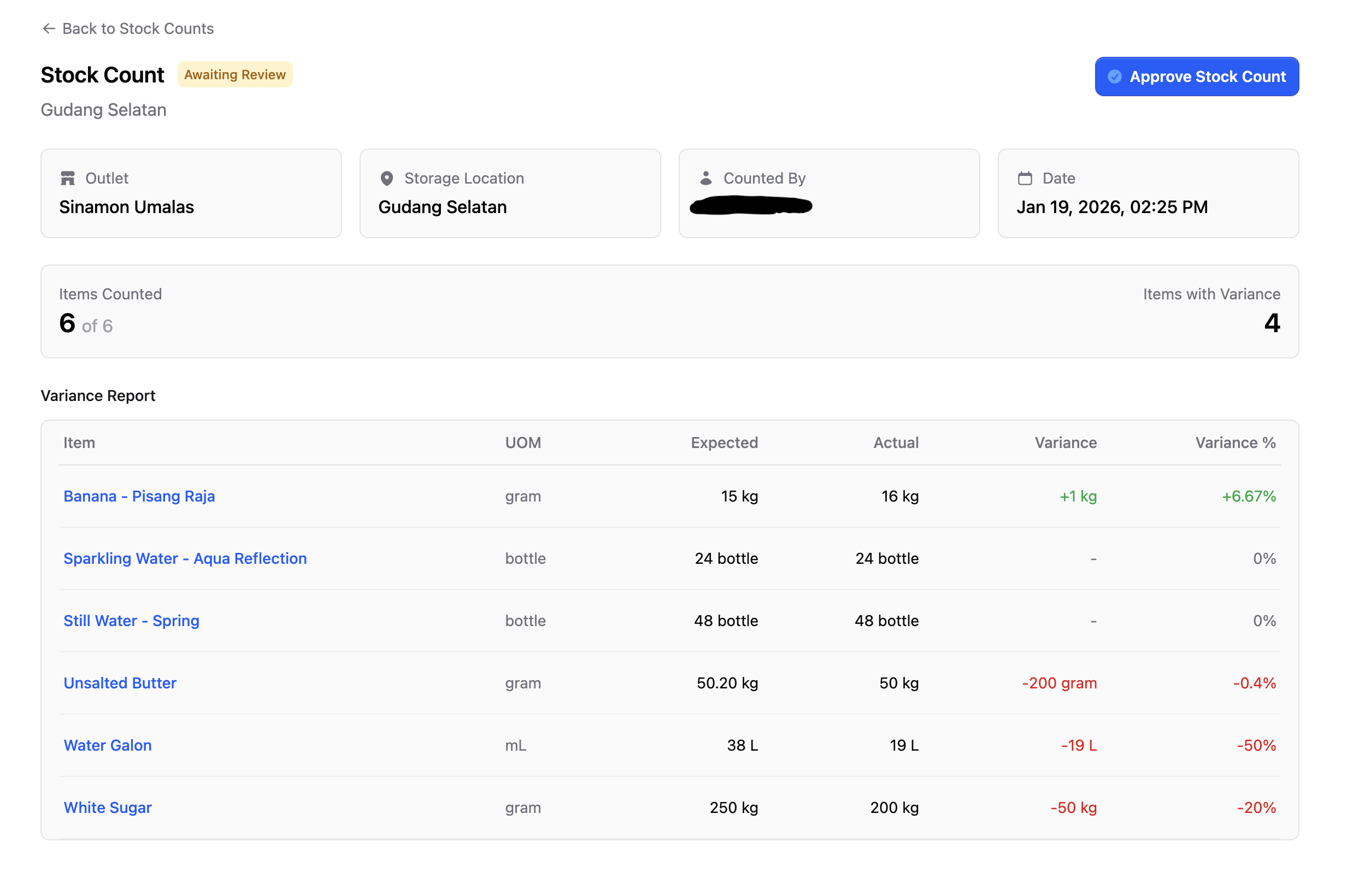
In the future, it will be the manager's responsibility to verify and approve all stock counts submitted by employees. All stock counts should be reviewed and approved by the manager via the Butter Backoffice.
You can check your stock count approval queue by visiting: Stock Counts in Butter Backoffice
Verify the Results
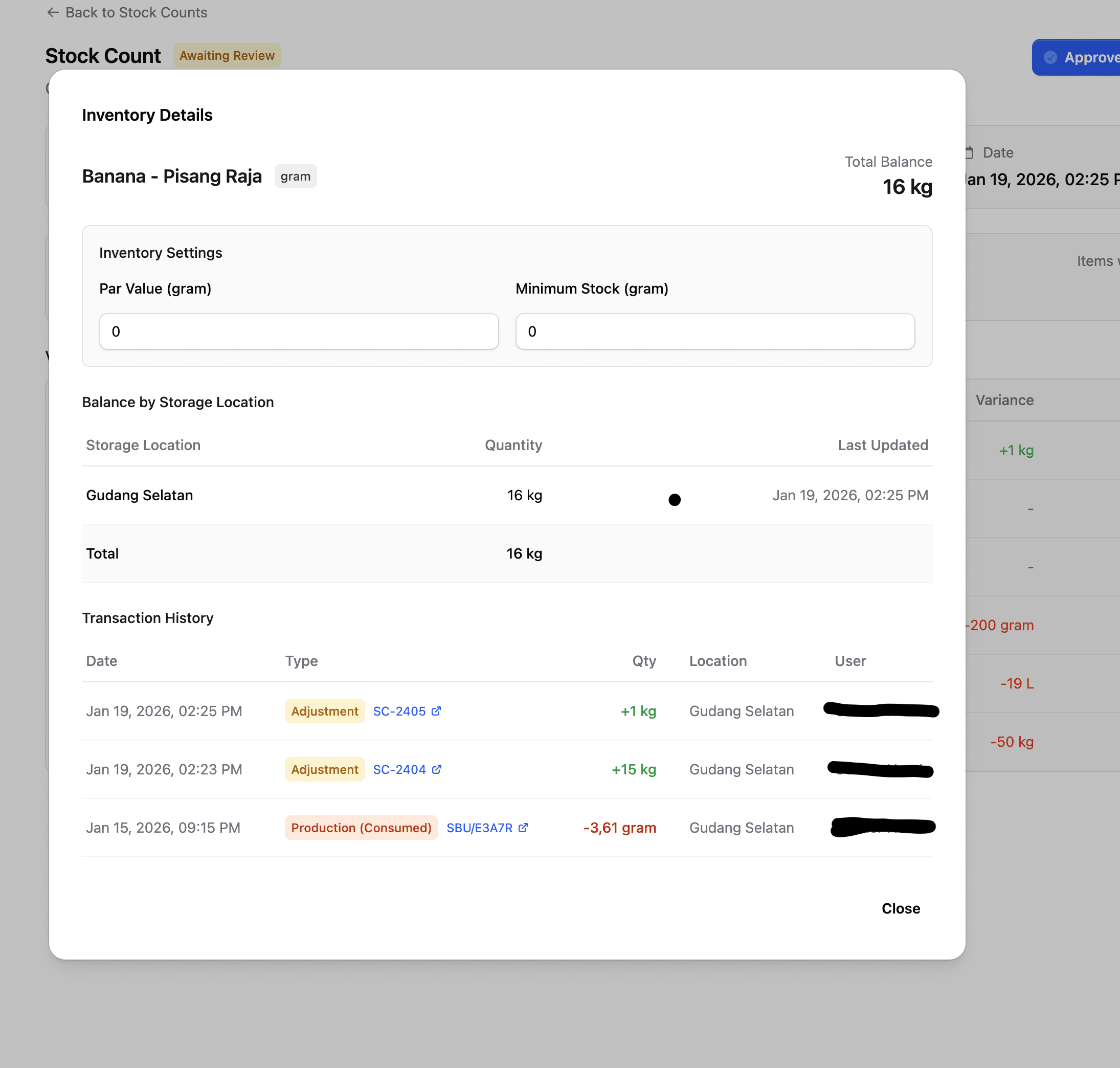
After completing the count, spot-check a few items:
- Go to an item in Butter
- Check that the quantity matches what you counted
- If something looks wrong, you can do a correction count
Common Questions
Q: What if I miscounted something? A: You can do another stock count for just that storage location. The new count will update the quantity.
Q: What if I forgot an item? A: The item will show as 0 quantity. Do a quick count for just that item.
Q: How often should I do full stock counts? A: After setup, most outlets do weekly or bi-weekly counts. See the Stock Counts guide.
You're All Set!
Congratulations! Your outlet is now set up in Butter. From here:
- All your purchases will automatically update inventory
- All your sales will automatically deduct based on recipes
- You can track everything in real-time
Learn Daily Operations
Discover how to manage stock counts, orders, and logs on a daily basis.